

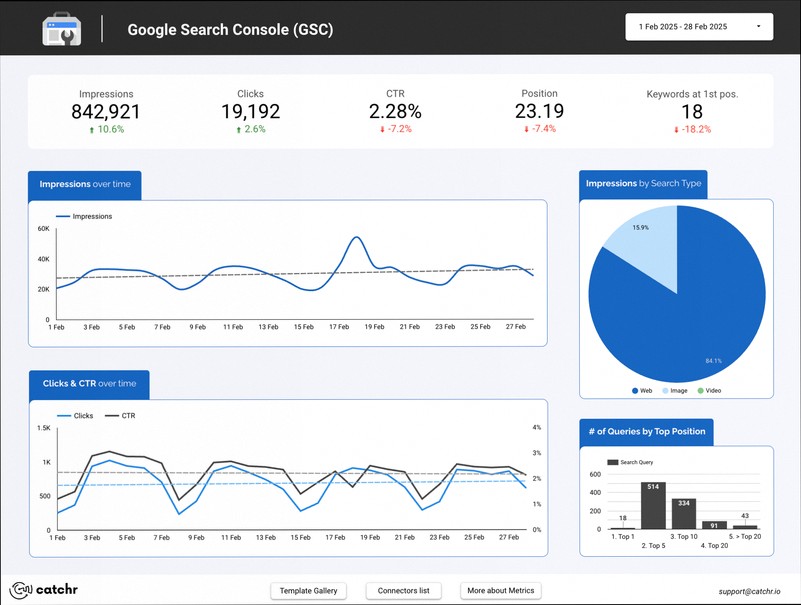
Google Search Console is a free tool from Google that helps you monitor and troubleshoot how your website appears in Google Search. After you connect your site with a Google account, it starts showing performance data like impressions, clicks, and average search-result position.
It also helps with discoverability. You can see which pages Google can crawl and index, submit and check sitemaps, and use URL Inspection to understand crawl and indexing status, last crawl time, and any structured-data issues.
Beyond reporting, it can alert you to problems such as crawl errors, spam signals, manual actions, and security concerns. Over time, these insights make it easier to improve technical health and refine your search strategy with confidence.
When Rankings Drop, Data Is Often Missing
If your pages lose traffic, it is easy to blame “the algorithm,” but most problems show up first in crawl and indexing signals. Without a reliable way to see what Google can reach, what it has stored, and how users actually find your site, you end up making changes blindly.
Google Search Console helps close that gap by reporting real search performance and real crawl behavior. Instead of guessing whether a page is indexed or merely lagging, you can check impressions, clicks, and search-result position, then connect that performance to specific URLs and issues.
What Google Search Console Reveals About Crawling and Indexing
Google Search Console is a free, web-based Google service that monitors and troubleshoots your site’s presence in Google Search. After you verify ownership, you can view how often your pages appear (impressions), how often people click (clicks), and where they tend to rank (search-result position), all tied to queries and pages.
It also helps you confirm crawlability and indexing. The URL Inspection tool shows index status, last crawl date, and whether structured data is detected, plus it can run live URL tests that render the page the way Googlebot sees it. For official documentation on what to expect, start here and then match the steps to your site setup.
| Report or Feature | What You Check | Action You Can Take |
|---|---|---|
| Performance | Clicks and queries | Filter by page |
| URL Inspection | Index status | Request re-indexing |
| Sitemaps | Submitted URLs | Submit or resubmit |
| Coverage and errors | Crawl and index issues | Fix and retest |
| Links | Who links to you | Spot link patterns |
As a bonus, it can surface visibility problems like robots.txt conflicts, preferred domain settings (www versus non-www), and even alerts related to spam, manual actions, or security concerns. It also ties into Core Web Vitals and page experience signals to help you spot speed-related problems that hurt performance.
Common Problems You Can Diagnose With Real URL Evidence
When you see a traffic dip, focus on the pages that should be working. Start by using Performance data to find URLs that dropped in clicks or impressions, then jump into URL Inspection to check whether Google can crawl them and whether they are actually indexed.
Many issues follow repeatable patterns. For example, a page may be crawlable but not indexed due to canonical or “noindex” behavior, or it may fail due to blocked resources. If structured data is present but error-prone, Search Console will highlight it so you can correct the markup rather than assuming the content is the problem.
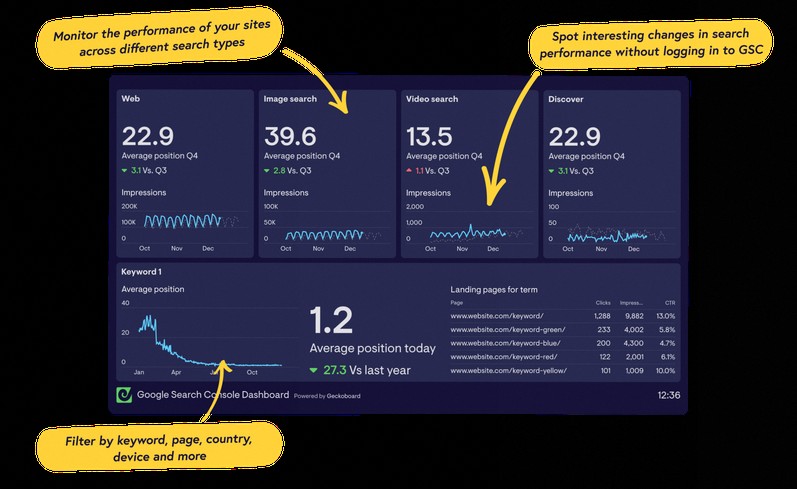
You can also use it to spot discovery problems early. Submitting and validating your sitemap improves how quickly new or updated pages are found, and the coverage-style reporting can point out crawl errors Googlebot encountered. For teams dealing with SEO plus UX, the Core Web Vitals and site speed signals make it easier to connect ranking performance to real user experience metrics.
Practical Setup Tips and Mistakes to Avoid
Start with correct verification and consistent site ownership. Then submit your sitemap and keep it updated as your site structure changes. When you publish or significantly update important pages, the re-index request can help shorten the feedback loop, but remember that indexing is not guaranteed since Google decides when and what to process.
Use the data with the right expectations. CTR changes can come from ranking shifts, and impressions can rise even when clicks stay flat due to SERP layout. A common mistake is chasing one metric while ignoring the crawl and indexing context, so make “Can Google reach this?” your default question before you rewrite content.
Finally, avoid fix-then-forget. Review alerts, check robots.txt handling, confirm preferred domain settings, and revisit structured data when you change templates. If you track improvements, do it in small batches, because Search Console data accumulates over time and you will want clear before-and-after signals.
How to Use Google Search Console to Monitor and Troubleshoot Your Site
What Is Google Search Console, and What Metrics Can It Show?
Google Search Console is a free tool that helps you monitor your website’s presence in Google Search by showing performance data like impressions, clicks, and average search-result position, and by helping you track crawl and indexing status, including insights from the URL Inspection tool.
How Do You Submit a Sitemap and Fix Indexing Issues in Google Search Console?
In Google Search Console, verify your property, submit your sitemap, then use URL Inspection to check index status and last crawl, review any crawl or structured-data problems, and request indexing for updated or newly published URLs (indexing isn’t guaranteed).
Using Google Search Console Helps You Stay on Top of Your Site in Search
Google Search Console is a practical way to monitor how your pages perform in Google, spot crawl and indexing problems early, and track what Google can see, including impressions, clicks, and search-result positions. With tools like Sitemap submission and URL inspection, you can respond faster to issues that affect visibility and keep improving your site’s presence over time.